Showing posts with label Blogger Tips. Show all posts

How to Backup/Restore template in new blogger interface?

/ Thursday, May 31, 2012 /
Backup restore new Blogger Template easily
Here i'm saying about an important topic that i had posted early " How to Backup/Restore Blogger Template? ". But i'm going to show you How to Backup/Restore  Blogger Template in New Blogger Template . Now a days Blogger default interface is Upgraded New Blogger Interface. Backup/Restore Template is so important,So don't take this as a silly matter.
Read Following see How to backup template in New Blogger Interface..


How to Backup/Restore Template

  • Go to Blogger Account
  • Select Template [as shown in fig.]
Backup restore new Blogger Template easilyBackup restore new Blogger Template easily
  • Click on the Button Backup/Restore  in Left top .
  •  A box appears [as shown in fig.]

Backup restore new Blogger Template easily
  • As shown in the above fig. 
  • Click on Download Full Template to download Template.Save it
  • Click on the Browse to Restore the early downloaded Template.
  • That's all ..Enjoy with us...


Check out other Blogger Tricks HERE and Blogger jquery Widget Generators HERE

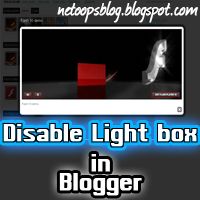
How to Disable lightbox in blogger

/ Friday, March 16, 2012 /
disable lightbox in blogger
Blogger also provides lightbox for viewing images.But if you take one image,it will open and the whole pictures in the page are listed ,Sometimes it may be a good feature also a bad feature.Here is a Simple trick to disable lightbox in blogger.


  • Go to Settings->Formatting (as shown in figure)
  •  You see a Option Showcase images with Lightbox select No.
  • That all.No longer Light box appear in your blog.

Convert Blog Posts to PDF file in Blogger Blog

/ Friday, February 10, 2012 /
pdf blog post
Here is a post that helps you to easily convert the Blog posts/Blog/Website to a Pdf file.So you can easily refer that Blog Post without the connection of Internet.

Follow the Instructions Below


How to convert Blog post to PDF

  •  Then Click the button P on the left side
  • That's all.You will get the PDF file.

Get PDF file of Blog post in this Blog.

  • Simply open the Blog post you want to Convert.
  • At the end of post there are some sharing buttons (Please share via Facebook,Twitter,etc) ,you will see an icon  P that like you found on the http://pdfmyurl.com,(Shown in below Fig.)  Click it
blog post to pdf

  • You will get the PDF file of that post.
I hope you had enjoyed this post....Please Share this

    Stylish Google friend connect Button to Increase followers

    / Saturday, February 4, 2012 /
    Google Friend Connect
    Google Friend Connect is an awesome Tool that lets your visitors to Follow your Blog and Increase your Blog Rank,gets Higher Traffic.

    Here I am saying about how to add a Standalone Google Friend connect Button or Link to Your Blog/Page or anywhere in your Blog.

    This Google Friend Connect Widget can only be place at Widget.This Standalone Friend connect button can place at anywhere also in the Post.

    Follow the instructions below.

    Add Follow button with Text

    <a href="http://www.blogger.com/follow-blog.g?blogID=PLACE YOUR BLOG ID HERE" target="_blank" title="Follow With Google Friend Connect"><img border="0" src="https://blogger.googleusercontent.com/img/b/R29vZ2xl/AVvXsEh5sUrbpAKj8ea8sVERzK9XrlL6VBV5k0ka9lo8f3-kkgbAO3xBHzNf8Fxq9YpBRoafLkmeYu4rP5EPWbubL2b7FiVgyjrp0RiNngsCApva4CydTPC54XdRIl7AdRTFirg1Nv9U5Y3VbSs/s1600/google+friend+connect+netoops.jpg" /></a>
    Preview


    Add a Stylish Follow Button

    <a href="http://www.blogger.com/follow-blog.g?blogID=PLACE YOUR BLOG ID HERE" target="_blank" title="Follow With Google Friend Connect"><img border="0" src="https://blogger.googleusercontent.com/img/b/R29vZ2xl/AVvXsEi0SPGSPkYmOJuamBZYSJ0OGtx-zeyePHXvXFIy_2sibVjKskQtWi29MP-t3vt5Vhb2QbfipdAX3AmWcIBDHdC0iKaCny-qDD_qdqRZ0cRoiHPznuZVolMNVVmCSJgulgf-Y7j0ZSdLUYo/s1600/google+friend+connect+style.jpg" /></a>
    Preview

    Another Stylish Follow Button

    <a href="http://www.blogger.com/follow-blog.g?blogID=PLACE YOUR BLOG ID HERE" target="_blank" title="Follow With Google Friend Connect"><img border="0" src="https://blogger.googleusercontent.com/img/b/R29vZ2xl/AVvXsEhPh_MkpQKIOd-o2LNEMcjsPvyXgHk4TIpv8AhAlUK49IAYTJ-oltorKtbCtzcZdNhjKdI4Ar1sWIWL-_iRXroIQW5837FzvP0mHHPjv3KHaOe2w012Aki6LCmiqwl-ruksWE5erDoeqDw/s1600/google+friend+connect+style2+netoops.jpg" /></a>
    Preview

    Another Water Blue Stylish Follow Button

    <a href="http://www.blogger.com/follow-blog.g?blogID=PLACE YOUR BLOG ID HERE" target="_blank" title="Follow With Google Friend Connect"><img border="0" src="https://blogger.googleusercontent.com/img/b/R29vZ2xl/AVvXsEgJAFGPsmecV0Bn0uet7OG4smNw2EiRq62l4ZWfE2nGQ5T7CAwRdnbPAJT6sPIusYPMm79DxrJ04-CpD5-VCQ1_aGGAWlEVGPrtaA4n3jZ2FUdJkqCZlZWNtd8kEm8FyzRyh2TIQuW7_WM/s1600/google+friend+connect+style3+netoops.jpg" /></a>
    Preview


    How to Find your Blogger ID

    • Simply Go to Design or Settings or Posting or any other of the TAB
    • Watch the URL on Address Bar of the Browser and copy the Blog ID number and replace "PLACE YOUR BLOG ID HERE" with your blog id .


    How to Add Follow Button Below Every Post.


    Remember that Backup your Template Before Editing (How to Backup Template)

    <div class='post-footer-line post-footer-line-1'>
    OR
    <p class='post-footer-line post-footer-line-1'>
    • Place the following code Before it
    <b:if cond='data:pageType == &quot;item&quot;'>
    PLACE THE CODE OF FOLLOW BUTTON YOU WANT (that described above)
    <.b:if>
    Example:
    <b:if cond='data:blog.url == &quot;item&quot;'>
    <a href="http://www.blogger.com/follow-blog.g?blogID=585509540650265660" target="_blank" title="Follow With Google Friend Connect"><img border="0" src="https://blogger.googleusercontent.com/img/b/R29vZ2xl/AVvXsEgJAFGPsmecV0Bn0uet7OG4smNw2EiRq62l4ZWfE2nGQ5T7CAwRdnbPAJT6sPIusYPMm79DxrJ04-CpD5-VCQ1_aGGAWlEVGPrtaA4n3jZ2FUdJkqCZlZWNtd8kEm8FyzRyh2TIQuW7_WM/s1600/google+friend+connect+style3+netoops.jpg" /></a>
    <.b:if>
    • Save the Template..Done..
    I hope you enjoyed this Post ,If any bugs with this please Comment it....

    Create an Official Google plus Page to drive traffic

    / Thursday, January 26, 2012 /
    Google launched Google pages for Google plus.It is a business solution for promoting products,blogs,news,events etc.. to your fans.Another important feature is it will increase your blog's traffic.Now i am saying about how to create an official Google+ Fan Page for your Blog.You can share your blog posts,events,photos etc to your Google Official plus fan page.It is almost similar to Facebook Fan Page.
    Lets see how to create it.(Description with images)
    Follow the instructions

    Create official Google+ page

    You must have a Google plus Account to create Fan page.

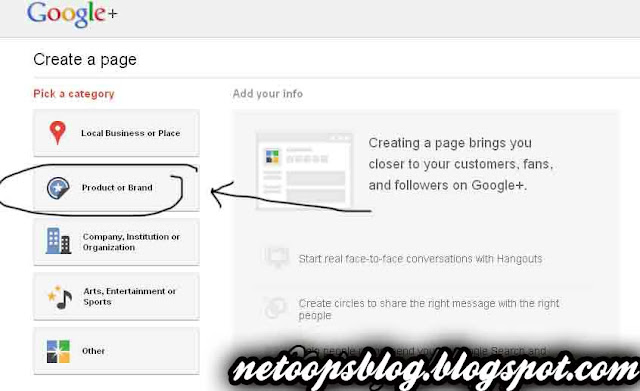
    • Sign In to your Google account and go to this LINK
    • Click on Product or Brand
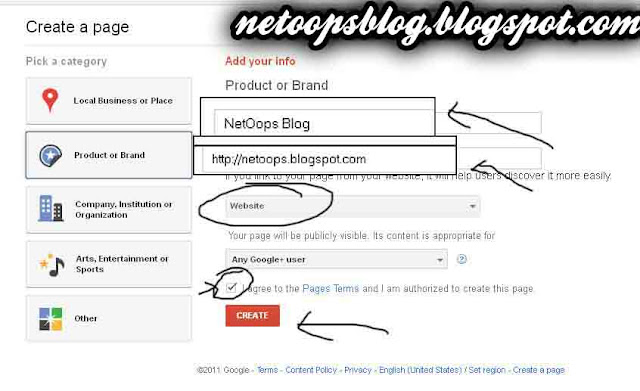
    • Give the name of page you need to create(Blog/Site Name)
    • Choose Website from the list
    • Make sure you check the box below it
    • Click on CREATE

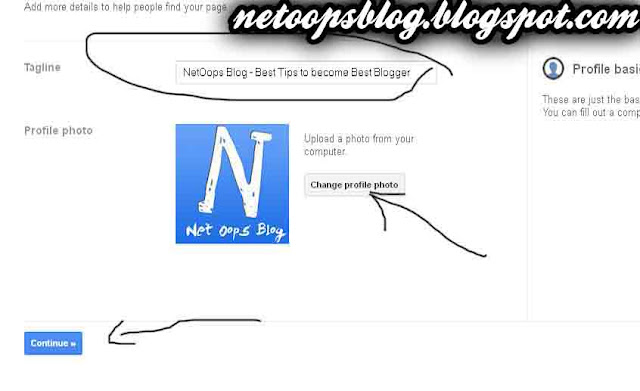
    •  The give your blog title and upload your Blog LOGO, If you have no LOGO for Blog click HERE
    • Click on Continue
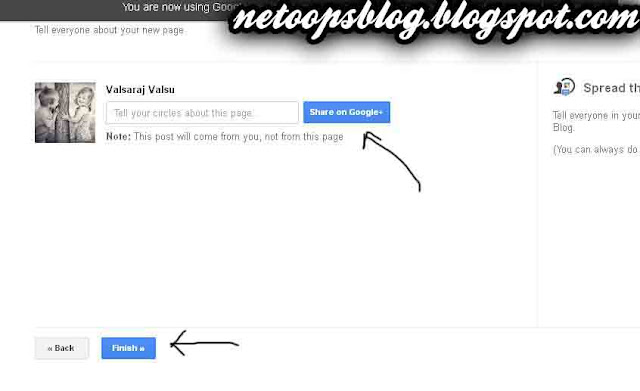
    • Page creation is almost finished.Now you can share your Google+ page by click on Share on Google+
    • Click on finish ..Done..your page has been created sucessfully.

    How to add Google+ Badge to your Blog

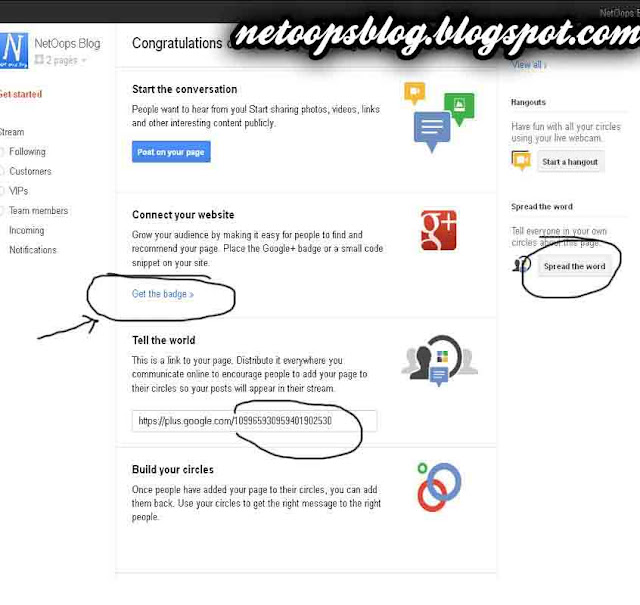
    After finishing creating page ,you can see a button Get the Badge, Click it
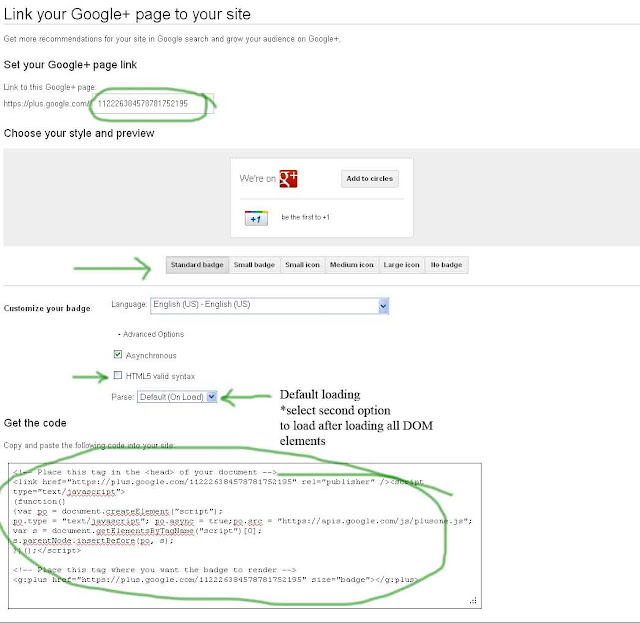
    • It will redirect to the page like following picture.
    • you can see your page link,you can share it.
    • Choose the style of your G+ badge
    • After that if you want check the box HTML5 valid syntax
    • Then Copy the code in  the text box
    • Go to your Blogger Dashboard
    • Select Design->Page Elements click on Add Gadget
    • A pop up window will appear look it carefully and find HTML/JavaScript
    • Enter gadget title(eg:Share in Google Plus) and Paste the code on the content textbox
    • Click on SAVE..,Done..

    Head Banner changing trick for blogger

    / Monday, January 16, 2012 /

    Today i am saying about an interesting thing .Head banner changing trick for blogger
    This is a simple blogger hack.when you add this, your blogger blog's header image will change after RELOAD the webpage on your browser.
     Follow the instructions :)

    • Sign In to your blogger account.
    • Goto Design->Edit HTML
    • Find ]]></b:skin> and paste the following code before it.
    #header {
    background: url("your head image url") no-repeat left bottom;
    margin:0;
    padding:2px;
    }
    • Then copy the below script  and place it inside the <head> tag:

    <script type="text/javascript">
    var banner= new Array()

    banner[0]="1st image url"
    banner[1]="2nd image url"
    banner[2]="3rd image url"
    banner[3]="4th image url"
    banner[4]="5th image url"
    var random=Math.round(4*Math.random());

    document.write("<style>");
    document.write("#header {");
    document.write(' background:url("' + banner[random] + '") no-repeat left TOP;');
    document.write(" }");
    document.write("</style>");
    </script>
    you are done...:)
    If any problem with this blogger trick please leave comment,don't hesitate to ask,we are happy to help you:)

    Remove Subscribe to posts (atom) from Blogger Blog

    / Wednesday, January 11, 2012 /


    #This is an article about how to remove Subscribe to:posts(Atom).
    You must have seen that this Subscribe to:posts(Atom) at the bottom of your Blogger Blog.Blogger added it to every blogger blog for your visitors to subscribe atoms feeds.Do you thinks that it is quiet boring? Here a simple tip to remove it.
    First of all 

    • Sign In to your Blogger Account and Go to Design->Edit HTML
     Important:You must tick the check box  Expand Widget Templates
    • Find the following and delete it
    <b:include name='feedLinks'/>
     Or put inside this (<!-- -->) like this <!-- <b:include name='feedLinks'/> -->

    Its done...
    Thank you for visiting my site. I’m the author of home decor help, home garden decor, home design interiors, tina 4 home design, uhozz, visit yogurt lab, sitazine, is beauty tips and sunnijati website. Modestop Topmodest Free Beauty Tips Shitazine Sitahouseblog Izhealthy Shitadesign Sitahouse Topmodest Sitazine Irezine Home- decor-design Shitadesign Shitadesign-dot-com Inhomeland inhouseland ghiuldenika inebautystyle enterarteiuna radiodominiopublico biberealexandru fabiobernadosdi geeklore31 syahadah-alhafeezah peaceloveiman bigwideempty techandchefadventures kaosgunlugu fikirkulubleri duazinciri theinternationalrules morefortngintn monkeymanzach lifeatthegreenys photokid84 chelsea-settles chasingmommyhood sexyhotactresseswallpaper tophotnewstodays avvani urbantrendsussex voychic reisyamode sitazine reportmy homedesignideasx mystylepinterest fashionstyleco popularnewstips isexy-hot-girls sexywomengirl trendymodeku derumahdesign womenhairs hackoblogger gadiswomen homeinteriordesignideas1s homedesignideasa uniquehomedesignsw enterpreneurforbloggers earningblogtipss lilyandgiasmom onfeatureblog aboutadsen onblogsocial tecnologiku onlinekutip akuhub caramakemoney youseoneed blogukus newbieblogit adsenseguideto triond-adsense inseoservice intipseoblog otherseoblog freeseoguid seoblognets tawaguideblog seosecretip buzdesign modewomen gayawoman cantikide tipsehat bebeautyps tipsjilbabcantiks idekontenislami healthfitnessnutritionsz jilbab-tips tips-home-decor caramemakaijilbabv beritaremajaterkinie allisoncrewnews mypinspinterest mypinspinterest gogirlsgallery seyhotgirls topmodest worldotgirls seksigirlsblog yourgirlsnet sexywomensia decorativehousedesigns simplebloggertipsz aboutadsense09s marketingner freeseotipstricksz womensiana chicstylegallery oblogkudewe colhomegallery marketserve onlibusiness artodesign designinguide oninteriorhome interiormu intutorblog blogoffeed newbloggerhint enginseo dibisnistips internetmublog onroomdesign homegardenco
     
    Copyright © 2010 SEO Tips & Tricks, All rights reserved
    Design by DZignine. Powered by Blogger